The Find Field tool provides a quick way to locate any field in the current module; it is available when searching a module and adding a new record. To access the tool, select a module button in the Command Centre, opening a Search workspace; the Find Field button is found in the Workspace toolbar:

It is also available when adding a new record; click the Create New button in the Search workspace toolbar to open an Insert workspace:

To locate any field in the current module:
- Click the Find Field button
-OR-
Use the keyboard shortcut:
CTRL+F.The Find Field box displays.
All fields in the module are listed alphabetically along with the Tab on which they are located:
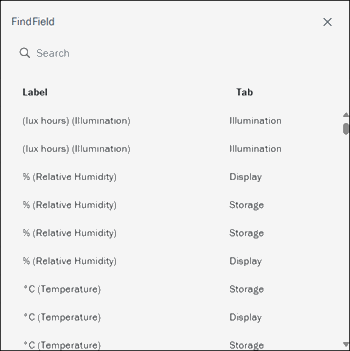
- To locate a field, scroll through the list or type the field name in the text box.
As you enter letters, the list will scroll to the closest match.
- Select the required field to be taken directly to the Tab on which the field is found.
Note: Unlike the Find a field tool in EMu, you are not taken directly to the field but rather to the Tab on which the field is located. It may be necessary to scroll down to locate the field on the Tab.
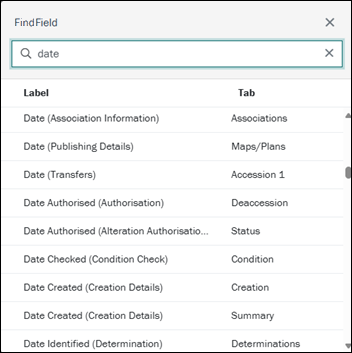
As the same field name can be used on several Tabs in the same module, the name of the Tab on which a field is found is listed beside the name of the field. In the example below, there are multiple Date fields in the Catalogue; context for each is provided by the field group name (in brackets) and the name of the Tab on which a field is found:
 Feedback